▣
Enter the class details
Choose the training date, your saved trainer and ITI names, then enter the number of students who attended.
A friendly walkthrough of everything SkillLog Studio can do for your reporting workflow.
From a completed class to a polished daily update—with no spreadsheets or repetitive typing.
Create a report ↗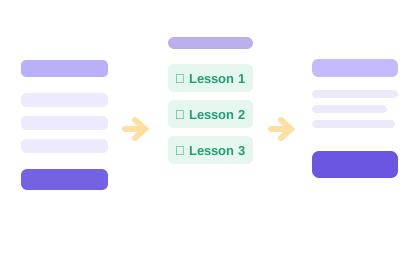
Choose the training date, your saved trainer and ITI names, then enter the number of students who attended.
Tick the lessons individually, choose a From–To range, or continue with the next three lessons in sequence.
The preview updates immediately. Copy your message, download TXT, and save the report in your history.
A short, built-in animation demonstrating the three reporting steps.
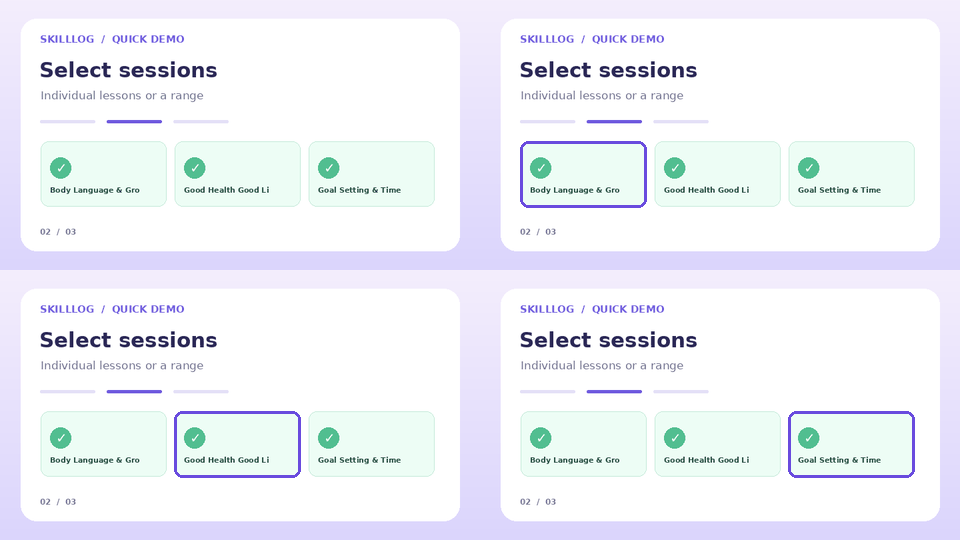 ANIMATED TIP · CONTINUOUS SESSION SELECTION
Yes. Select + Add trainer or + Add ITI in the builder. Once saved, that name appears in dropdowns on every future visit.
Choose a starting official lesson and an ending lesson, then press Add range. Every official lesson between those numbers is selected. You can also click Add next 3 lessons to continue the sequence. For topics outside the 15-lesson framework, use + Custom topic and select the saved topic individually.
No. All saved names and reports are stored in three JSON files in the protected data directory. You only need PHP with write permissions for that folder. This version has no log-in system, so restrict public access when using personal data.
Yes. Open Saved reports to edit, duplicate, preview, copy or delete an entry. A confirmation dialog appears before a report is deleted.
Choose the default WhatsApp format. Asterisks around the date, college, trainer, and student count make those values bold when pasted into WhatsApp. The day number is calculated from 26 October 2026 and can be overridden. Use Plain Text for basic sharing, or Detailed if you want hours and notes included.
Both your name and ITI are already prefilled. If you run a batch somewhere new, add the location once to reuse it later.
Manage saved names →